
How to Manage File Permissions in Linux (chmod & chown Explained)
Learn how to control file permissions in Linux using chmod and chown. Understand read, write, execute permissions and how to secure your system step-by-step.
How to Manage File Permissions in Linux (chmod & chown Explained)
One of the most important skills in Linux is understanding file permissions. Permissions control who can read, write, and execute files — and they are critical for security and system management.
In this guide, you will learn how Linux permissions work and how to use the chmod and chown commands step-by-step.
Understanding Linux File Permissions
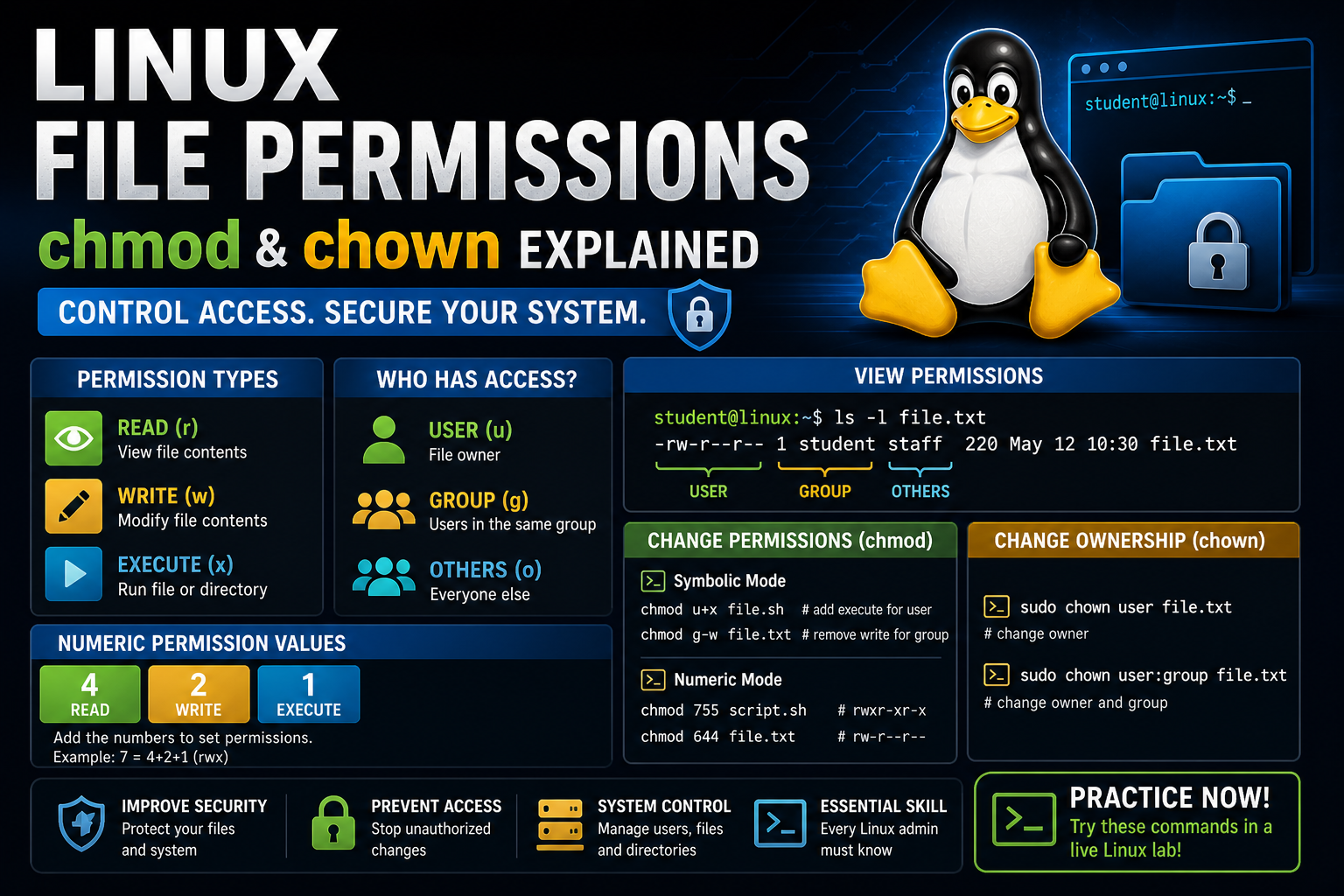
Every file and directory in Linux has three types of permissions:
- Read (r) — View the contents
- Write (w) — Modify the file
- Execute (x) — Run the file as a program
These permissions are assigned to three groups:
- User (u) — The file owner
- Group (g) — Users in the same group
- Others (o) — Everyone else
Viewing Permissions
ls -lExample output:
-rw-r--r-- 1 student student 220 file.txtBreakdown:
- - = file type
- rw- = owner permissions
- r-- = group permissions
- r-- = others permissions
Using chmod (Change Permissions)
Symbolic Mode
chmod u+x file.shAdds execute permission for the user.
chmod g-w file.txtRemoves write permission from the group.
Numeric Mode
Permissions can also be set using numbers:
- 4 = Read
- 2 = Write
- 1 = Execute
Example:
chmod 755 script.shBreakdown:
- 7 (4+2+1) = full access
- 5 (4+1) = read + execute
- 5 (4+1) = read + execute
Using chown (Change Ownership)
sudo chown user file.txtChanges file owner.
sudo chown user:group file.txtChanges both owner and group.
Real Practice Example
touch test.sh
chmod 755 test.sh
ls -l test.sh
You should see executable permissions added.
Why Permissions Matter
- Prevent unauthorized access
- Protect system files
- Control application behavior
- Improve system security
Common Mistakes
- Using
chmod 777(dangerous — full access to everyone) - Forgetting to use
sudowhen needed - Misunderstanding numeric permissions
Final Thoughts
Mastering file permissions is a major step toward becoming a Linux professional.
Once you understand permissions, you will be able to manage servers, secure systems, and troubleshoot access issues with confidence.
Practice Linux Commands for Free
Reading is helpful, but Linux skill comes from practice. Create a free account and use Linux Certification University’s live Linux lab, command guides, modules, quizzes, and troubleshooting practice.
Create Free Account Back to Blog